
By this useful tutorial I will teach you that how to install Ubuntu 12.04 LTS or latest version of Ubuntu with complete guidance. Ubuntu 12.04 LTS is very popular well-known as the (PRECISE PANGOLIN) released on April 26th, 2012. In the serial of Ubuntu it is 16th release of the Ubuntu Linux. Ubuntu Linux now very popular in all over the World because it is open free and contained lot more facilities. How to install Ubuntu 12.04 LTS and another newly version in your personal computer this tutorial is very useful. Especially those peoples who are new and unaware about Ubuntu they can install it in their computers to read this useful tutorial.
System Requirement
For 32 Bit
512 MB RAM
64 MB VGA
30 GB Hard disk
Processor CPU 1.5 GHz
For 64 Bit
04 GB RAM
512 MB VGA (Min)
120 GB Hard Disk
Core i3 processor (2.30 GHz)
I have tested both 32 bit and 64 bit, I have used 32 bit normally on my machine without any problem, but 64 bit is required lot of memory and if you have not enough memory at about 04 GB to 06 GB your system would be slow. So I advised that use 32 bit.
Installation Requirement
First you have to need Ubuntu 12.04 LTS Desktop ISO image that communicates to your hardware structural design i386 or amd64 and that can be downloaded direct link here. After the downloading of ISO Image File burn the ISO image with CD/DVD burning application for the guidance click here and if you have required to make bootable USB Flash Click here. After that function boot your system by CD/DVD or USB Flash press keys F8, F11 or F12 key according BIOS setup of your computer.
1. See the first boot up blank screen with tiny logos on the bottom

2. After that press any key or wait you will get the following screen for further process and select your preferred language.

3. Now your system have at least 512 MB of RAM, you should be select (Try Ubuntu), as it will permit you to do things as well as for checking of email, browse the web etc during the installation of Ubuntu see the following pictures.
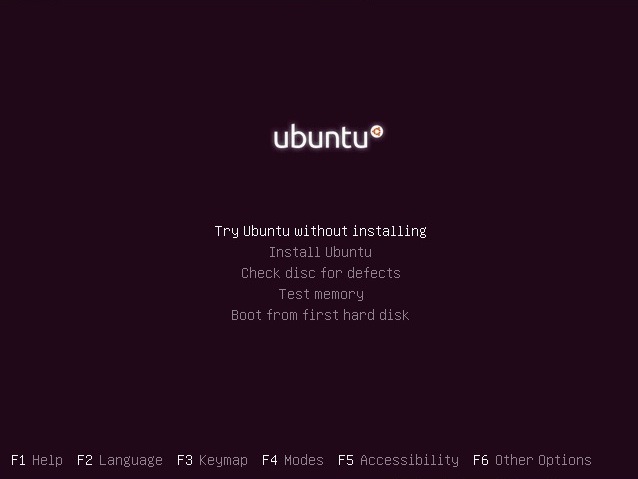
4. In this regard If you have only 256 MB or above you should select (Install Ubuntu) see the following picture.

5. You are new installer after that you will see the following picture on icon shown on the screen (Install Ubuntu 12.04 LTS) see the following picture then select your language and press button to continue.

6. Now you should be choose (Install Ubuntu) shown in the following picture below and select your concerned language.

7. Now look at the picture below an option that asks if you need to install closed source third party software for MP3 playback and Flash, for example I suggest that this option will require a working internet connection, Ubuntu will detect automatically wireless connection. One thing note that if you have internet connection tick mark on all options.

8. After that you have 03 options see in the picture has given below, if you want to install Ubuntu in Windows or separate or you want to make separate partitions. If you want to make Linux partitions click here.

9. Now see the picture below if you are ready to install Ubuntu 12.04 LTS alongside Window press to continue button after selection of option No.1 in above picture then you will see the following picture for more guidance and press Install button.


11. After this function Ubuntu will be start to copy the files on your hard drives and also you have been asked some questions and for more simple guidance follow the following pictures.


12. Finally, the installation will finish and now restart your computer and remove your bootable CD/DVD or USB Flash.


0 Comments:
Post a Comment