

By this useful article you teach that how to create Ubuntu bootable USB Flash in Unetbootin, lot of Ubuntu Linux users want to make USB Flash Drive for Ubuntu Linux or other Linux versions. Now you teach that how you make USB Flash bootable in Unetbootin Software. Further I teach you simple and easy way and better guidance and one thing note in your mind that if you are interested to make bootable USB of Ubuntu 12.04 or later version you should be have 2 GB USB space and format your USB Flash keep it blank.
This Software is very popular to make bootable USB of Linux Ubuntu or other Linux versions. I have tested that USB Flash driver can usually be read faster than optical drives. Recently Ubuntu 12.04 LTS Desktop Edition ISO file sizes are now over 700 MB, which ways you cannot even burn it to CD any more. You would have to waste all 4 GB blank DVD and other more reasons you should be "burn" to USB instead. First download Unetbootin click here and then I will guide you step by step.
1. When your downloading complete you will see the following picture click on yes button.

2. Now look at the following picture with carefully and then you will be presented with two more options. You can either select Ubuntu from the distribution list and leave it up to UNetbootin to download the Ubuntu ISO file for you or, if you already have the ISO file downloaded, select the ISO file yourself.
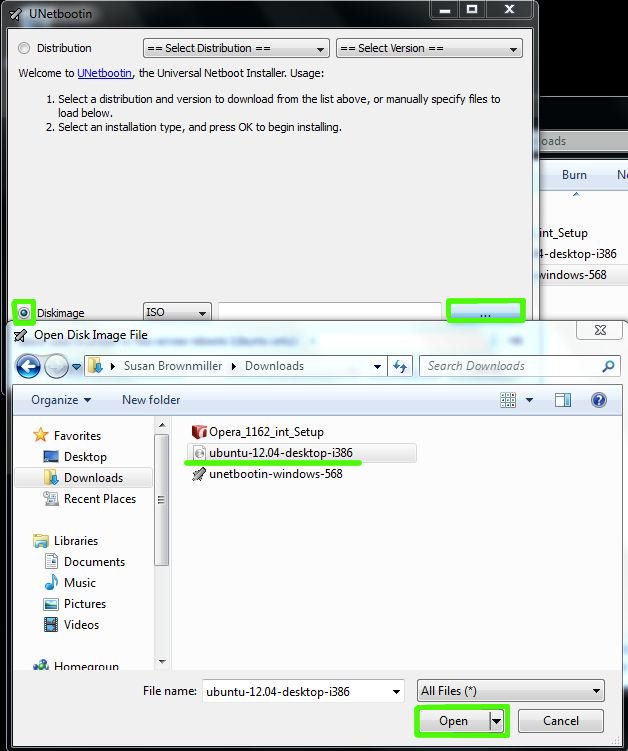
3. When you have done all functions to look the above picture after that select USB Flash Drive you want to burn it the ISO file and then click on OK button for more guidance look at the following picture.
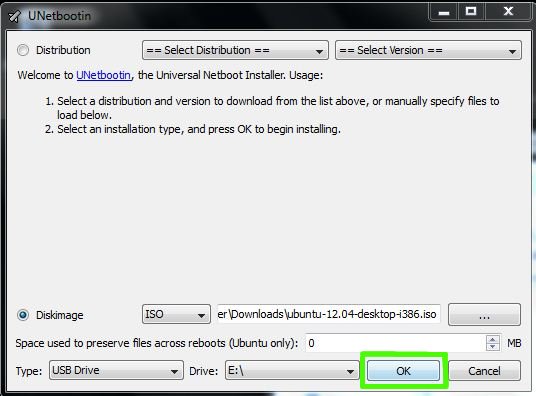
4. Now Unetbootin software in working position and copying files on your USB Flash Drive and also making Boot files, wait and do not hurry up for more guidance look at the picture below.

5. Now you are done and reboot your system and continue to installation of Ubuntu Linux or any version for more guidance look at the following picture.

If you like this article leave your comments, and further more you want to install Ubuntu linux click here.


0 Comments:
Post a Comment