Banner-2

Friday, October 12, 2012

How to Solve Boot Repair Problems in Ubuntu Latest Versions

By this useful article you teach that how to solve boot repair problems in Ubuntu latest versions. Lot of Ubuntu users have to use Ubuntu along with Windows they need two options in the starting of Computer in Boot Manu. It is big problem for them I have checked and looked lot of complain on Ubuntu Forum so I am writing this article for those  who have to boot problems. Now I guide you step by step how to solve this problem. If you want to install Ubuntu click here. 

1. Now I guide you that you have finished to install Ubuntu and want to repair boot and run dual system Windows and Ubuntu, first press Ctr+Alt+T open your terminal in Ubuntu and copy and paste the following repository command in Ubuntu terminal.

sudo add-apt-repository ppa:yannubuntu/boot-repair && sudo apt-get update

2. After that you are done and now once again type the following command in terminal for further process.

sudo apt-get install -y boot-repair && boot-repair

3.    After that it will open boot-repair as shown in image there select (Recommended Repair Option) for more guidance see the picture below . It will do the job of restoring your GRUB.


4. In view of the above after completion of process restart your computer than you will see boot menu in the boot section and select what application you want to run Windows or Ubuntu. It is Grub setting and for your easiness.

Leave your comments. 

Enter your email address:

Delivered by FeedBurner


Share/Bookmark

GM Qazi

Hardware and Software Engineer SEO Specialist Email:gmqazi1973@gmail.com

Thursday, October 11, 2012

How to Install Graphic Card Driver in Latest Ubuntu Versions

By this useful article I teach you that how to install Graphic Card drivers in Ubuntu Latest Versions. There is no doubt that Ubuntu detected automatically all Graphic and other drivers. But still some drivers not showing original and properly, I have checked that lot of Ubuntu users complain that they got  original Graphic Drivers problem in detail. So I guide you how to install original and proper driver in Ubuntu Latest Versions. 

1. First install Ubuntu latest version on your system click here and after that you check that your Graphic driver is originally installed or not if you have any doubt first update your system to use the following command in terminal.


sudo apt-get update

2.  Now see the situation use the following command in terminal the command will be handled properly and also system started to check your Graphic Card driver. 

sudo apt-get install mesa-utils


3. Now check in Detail and your original driver is showing or not, above command is very suitable, I have tested it for any Graphic Card drivers. I hope all Ubuntu users take advantage from this article and will solve problems of their Graphic Card drivers in Ubuntu. If your Graphic Card not  installed in your system properly, you will see the following picture.


4.  In my experience I advice that use the above command and do not go to other this is actual command for detecting of original Graphic card driver. After using of the above command if your Graphic Card properly installed you will see the following picture in detail.


Please leave your comments.

Enter your email address:

Delivered by FeedBurner


Share/Bookmark

GM Qazi

Hardware and Software Engineer SEO Specialist Email:gmqazi1973@gmail.com

How to Install Fonts in Latest Ubuntu Versions

By this useful article you teach that how to Install Fonts in Latest Ubuntu Versions, this is very important that in these days Ubuntu provide facility to use it in local languages, specially in Libreoffice lot of persons need fonts of their native languages. How to install fonts, I guide you step by step to install fonts in latest Ubuntu versions. 


1.   use the following command in terminal press Ctr+At+T with carefully.


gksu nautilus /usr/share/fonts/truetype


2.  When you use above command truetype font directory appeared  and one thing note that first download fonts you have required for example Urdu fonts or another language fonts do you need copy and paste the fonts in truetype directory and save it. See the following picture I have downloaded Jameel Noori Urdu fonts.


3. Now use the following command in terminal to install fonts which you have copied in truetype directory.


sudo fc-cache -f -v


4.  Now you have successfully installed fonts and restart your computer and then go to Libreoffice and check that all fonts installed properly. 

Leave your comments. 


Enter your email address:

Delivered by FeedBurner


Share/Bookmark

GM Qazi

Hardware and Software Engineer SEO Specialist Email:gmqazi1973@gmail.com

Wednesday, October 10, 2012

How to Install Cinnamon Desktop Themes to Ubuntu Latest Versions

By this useful article you teach that how to install Cinnamon Themes to latest Ubuntu Versions. You have installed Cinnamon Desktop and now you want to new beautiful Cinnamon themes to change the look up of your Cinnamon Desktop. If you have not installed Cinnamon Desktop click here. Now I guide you through following commands how to install it. 

1. Go to terminal with Ctr+Alt+T and open the terminal and use the following  command and launch repository first. 

sudo apt-add-repository ppa:satyajit-happy/themes


2.  Now Update your your files and refresh all to use the following Command with carefully.

sudo apt-get update

3.  Now install Cinnamon theme Minty designed and created by Satya  Student, Tech Blogger, Drawing-Hobbyist from India. An interesting Cinnamon theme Minty is a color-scheme that is based on Linux Mint. Really it is interesting and useful you can you it very simple and with easy way. Now use the following command and install it and also look up through the following picture.

sudo apt-get install cinnamon-theme-minty


If you like it please leave your comments and you want to install Cinnamon Desktop click here.

Enter your email address:

Delivered by FeedBurner


Share/Bookmark

GM Qazi

Hardware and Software Engineer SEO Specialist Email:gmqazi1973@gmail.com

How to Install Cinnamon Desktop in Latest Ubuntu Versions

By this useful article I teach you that how to install Cinnamon Desktop in Latest Ubuntu Version. Cinnamon Desktop is like Windows Desktop and very easy to use, specially for those who like Windows desktop in Ubuntu Linux. Now you read properly how to install Cinnamon latest from repository in Ubuntu 12.04 or latest Ubuntu Linux Versions and now Cinnamon Desktop is very popular desktop distribution. When you are done installing it, you will have a choice of using either the default Unity desktop that came with the distribution, or the Cinnamon desktop. Now and you can also install more beautiful Cinnamon themes.

1. First you open terminal with command of Ctr+Alt+T and copy and paste the following command of repository. Check the following screen for more guidance.


sudo add-apt-repository ppa:gwendal-lebihan-dev/cinnamon-stable 


2. After that update your system to use the following command in terminal.

sudo apt-get update

3.  Now install Cinnamon Desktop to use the following command in terminal properly.

sudo apt-get install cinnamon

4.  After finishing of installation restart your system and click on Cinnamon in Longin Menu for more guidance see the following picture.


5. Now you are ready to use Cinnamon popular Desktop, it is very easy to use like Windows see the following screens for your guidance.


If you like it please your comments. If you want to install more beautiful Cinnamon themes click here.

Enter your email address:

Delivered by FeedBurner


Share/Bookmark

GM Qazi

Hardware and Software Engineer SEO Specialist Email:gmqazi1973@gmail.com

Wednesday, October 3, 2012

How to Create Linux Partitions for Ubuntu and Latest Versions

By this useful article you teach that how to make Linux partitions with easily and simple guidance. In my experience advantages of Partitioning Hard Drive makes your Computer more and more faster, because the hard drive reader does not require to retrieve data from the entire disk, and starts from the (Swap) sleep mode faster. Put the SWAP partition between the Root an Home partitions. At the time of up grading  of Linux versions for example Linux Mint is very simply to do. I discuss that Linux Mint is very fast and popular in all over the world because during installation of a new Linux operating system  you can leave the (home) folders and all data, and install only the operating system in the (/) root partition.  This tutorial will guide you how to partition a 40GB hard drive optimally. You can use this partition table on any Linux operating systems for example Ubunut, Mint and another latest version of Linux. Now see the following useful instructions step by step.

1. Now insert you Bootable UBS Stick or DVD and boot your system when you will reach at the stage of partition you will see the following picture now I guide you detailed partitions of Mint this is same procedure as you wish to make partitions for other Linux versions and start manually partitions and see the picture given below:


2.  Now you see the following picture and click on (New partition table) for more guidance look at the picture as given below:


3.  In view of the above picture when you click on the new table you will see the following picture during the partitions of your Hard Disk. If you want to select entire device to partition and you want to go ahead with creating a new partition table on the device, then all current partitions will be moved. Now you should be click on continue button follow the picture shown below:


4. Now click on the continue button of the above picture and then will see your Hard disk full space and you should be select entire free space and after that click on (Add) button for more guidance see the picture has given below: 


5. After that when you click on the Add button in the above picture then you will see the following picture and select boot partition, if you have 40 GB hard disk you should be choose 512 MB minimum space for boot files. If you have larger Hard Disk you have to select more space for Boot partition according your choice and select Mount point (/boot) for more guidelines see the picture has given below. 

  
6.  Now see the picture given below and select free space and click on Add button and this process is to be continued.


7. Once again now the section is (/) Root partition, where all maintenance folders is already located. Type for the new partition: (Logical), New partition size in megabytes: Minimum size is 10 GB, but is recommended to use 15 to 25 GB if you have large enough hard drive you should be select more space according your choice.  It should be use as: (Ext4 journaling file system), Location for the new partition: Beginning, Mount point: / slash is root partition then click OK. For more guidelines see the picture has given below:


8.  Once again see the picture given below and select free space and click on Add button and this process is to be continued.


9. Now it is very important that make SWAP partition, the application creates it like an a temporary folder, where the system move data when going into sleep mode, and when you work with large image files. Swap is a type of working memory (RAM), you should be select the Swap size depends on the computer’s hard disk size and the RAM. If your computer’s hard drive is 40GB and the memory 512 MB or 1 GB, it is recommended to make new partition swap size, yours MB (RAM) x 1 – 2 = SWAP. In my experience type for the new partition: Logical, New partition size 1 GB.  Location for the new partition: Beginning, Use as: swap area, then click OK for more information follow the picture has given below:


10.  Now see the picture has given below and select free space and click on Add button and this process is to be continued.


11. Now the final section is the HOME partition, its called home directory where you store all your files and necessary documents  Type for the new partition: Logical, New partition size in megabytes: The remaining all free space will be used, Location for the new partition: Beginning, Use as: Ext4 journaling file system, Mount point: /home then click OK, if any problem see the following picture for more guidelines.


12. Finally now your partition table is ready and continue to installation any latest version of Linux without any problem. If you want to install Ubuntu click here.  I think this is proper and best way to make your hard disk partitions. When your partitions will be ready the table will be look like see the following picture. 


If you like this article please leave your comments.


Enter your email address:

Delivered by FeedBurner


Share/Bookmark

GM Qazi

Hardware and Software Engineer SEO Specialist Email:gmqazi1973@gmail.com

Wednesday, September 19, 2012

How to Make Best Desktop After Installation of Ubuntu Latest Versions

By this most useful article I tell you that I have been using Linux Ubuntu 12.04 Desktop Edition, this version is better than Windows 7 and also better for the securities point of view and also saved your computer from various viruses etc. If you are interested to install Ubuntu Linux 12.04 click here. The latest version of Ubuntu 12.10 Beta-1 is available download click here and original  version of Ubuntu Linux 12.10 will be available at the end of October 2012.  Now what things do you do after installation of Ubuntu Linux 12.04 or latest version, you can use following things. 

1. After the installation of Ubuntu Linux latest version, I further say that Ubuntu Linux is not like Windows but you have to work more after installation, when your installation would be completed look at the picture given below:


2. Now open terminal use command Ctr+Alt+T and use following two commands for update and upgrade and also system would have to take some time to update and upgrade Ubuntu Linux version.

sudo apt-get update
sudo apt-get upgrade


3.  In my experience  following method is better to install all required files, Multimedia codecs and software's etc in Ubuntu 12.04 or fresh version. I have tested it very useful but  you should have minimum space of 40 GB Hard Disk for doing this function. Follow the following instructions.

Open terminal use Ctr+Alt+T and use the following command to download post instillation Python Script.

cd Desktop
wget http://debianhelp.files.wordpress.com/2012/06/ubuntu-1204-post-install-tar.doc
cp ubuntu-1204-post-install-tar.doc ubuntu-1204-post-install-tar.gz
tar -xvf ubuntu-1204-post-install-tar.gz
sudo chmod a+x ubuntu-12.04-postinstall.py


After that  you need to select computer architecture Ubuntu OS is running, if you are using 32-bit ISO type the following command in terminal.

sudo ./ubuntu-12.04-postinstall.py -c mycfg32.cfg

If you are using 64-bit ISO use the following command

sudo ./ubuntu-12.04-postinstall.py -c mycfg64.cfg

Ok now you are done and you have to wait long time  your system would be install all necessary software's and other files on Ubuntu Linux 12.04 or better latest version and you will look like following picture.


4. If everybody want to install better things manually i guide you step by step see the following instructions.

You are using Nvidia video graphics Card and you are still having problem  and you would like to give Nvidia a try here is how you can install the very latest Nvidia drivers and use the following commands in terminal. One thing note that if your Nvidia card is automatically detected do not use following commands.

sudo apt-add-repository ppa:ubuntu-x-swat/x-updates
sudo apt-get update
sudo apt-get upgrade

You have not Nvidia Graphic card and you are using Intel Graphic cards or other Graphic cards use the following command in terminal and update your graphic card driver.

sudo apt-get install mesa-utils

5. MEDIBUNTU repository provides all the playback and encoding potentials that most Windows and Mac systems have, but which Ubuntu’s decline to comprise by default in their systems, due to licensing limitations and a be short of of open-source code for those features. If you just require obtaining AAC playback, copyright DVDs playing, and latest  versions of all the audio, video, and font files, load Medibuntu into your system and use the following command in terminal 

sudo wget --output-document=/etc/apt/sources.list.d/medibuntu.list http://www.medibuntu.org/sources.list.d/$(lsb_release -cs).list && sudo apt-get --quiet update && sudo apt-get --yes --quiet --allow-unauthenticated install medibuntu-keyring && sudo apt-get --quiet update
sudo apt-get -y update && sudo apt-get -y upgrade
sudo apt-get install app-install-data-medibuntu apport-hooks-medibuntu

After completion of above command if you are using 32-bit version use the following commands.

sudo apt-get install w32codecs libdvdcss2
sudo apt-get install libdvdnav4
sudo apt-get install libdvdread4
sudo /usr/share/doc/libdvdread4/./install-css.sh

If you are using 64-bit version use the following commands

sudo apt-get install w64codecs libdvdcss2
sudo apt-get install libdvdnav4
sudo apt-get install libdvdread4
sudo /usr/share/doc/libdvdread4/./install-css.sh

6.  One thing note that if you are using Ubuntu you should be install Ubuntu restricted and install it to use the following command in terminal and also you can install it by using of Ubuntu Software Centre. One thing note thing all necessary codes will be covered in Ubuntu restricted extras and during the installation you should be press Ok button on license agreement. 

sudo apt-get install ubuntu-restricted-extras

7.  Install Ubuntu Tweak Tools to use the following commands in terminal 

sudo add-apt-repository ppa:tualatrix/ppa
sudo apt-get update
sudo apt-get install ubuntu-tweak


8.  If you want to install DVD Codecs Separately it will be useful if you are not installed through above Medibuntu commands. Now install DVD codes and FFMpeg to use following commands in terminal.

sudo apt-get install libdvdread4

sudo /usr/share/doc/libdvdread4/install-css.sh


sudo apt-get install libxine1-ffmpeg gxine mencoder mpeg2dec vorbis-tools id3v2 mpg321 mpg123 libflac++6 ffmpeg totem-mozilla icedax tagtool easytag id3tool lame nautilus-script-audio-convert libmad0 libjpeg-progs flac faac faad sox ffmpeg2theora libmpeg2-4 uudeview flac libmpeg3-1 mpeg3-utils mpegdemux liba52-0.7.4-dev libquicktime2


9. Now install Firewall (UFW & GUFW) this is very powerful tool ufw was developed  to create a server-level firewall use the following commands in terminal and see the following pictures to adjust firewall.


sudo apt-get install gufw
gufw


10.  Install Clamtak Antivirus for Ubuntu linux, I say that no problem for virus in Ubuntu but precautionary install Clamtk and update it to save your computer.

sudo apt-get install clamav clamtk

Update latest version of Clamtk use the following command in terminal.

sudo freshclam

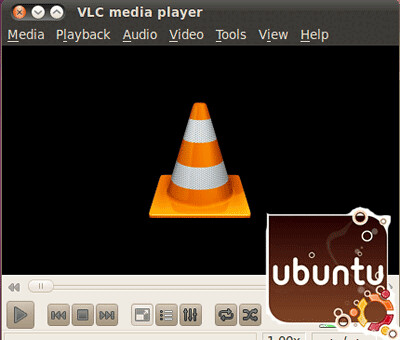
11.  I think there is no problem of Media Player in Ubuntu 12.04 because latest Media Player is already installed in Ubuntu you can use all formats Video and also Audio in Media Player. If you want to install latest VLC player use the following commands in terminal. 

sudo add-apt-repository ppa:videolan/stable-daily
sudo apt-get update
sudo apt-get install vlc


12. Install original Sun Java 7 JDK  for playing Minecraft, and other websites copy and paste the following commands  in your terminal this step will take some time for installation.


sudo apt-get purge openjdk-7-jre icedtea-7-plugin
sudo add-apt-repository ppa:webupd8team/java
sudo apt-get update
sudo apt-get install oracle-jdk7-installer


13. Install Archiver Package Softer for  tar, unrar, p7zip, arj, unace very easily in Ubuntu and also conventions supported by multiple vendors and/or open-source communities. Use the following main command in terminal.


sudo apt-get install unace rar unrar p7zip-rar p7zip zip unzip sharutils uudeview mpack lha arj cabextract file-roller


14.  Install Google Chromium it is better and fast,  I have tested it and it is very fast and easy to use the following easy commands in terminal and install. Another way you can install it from Ubuntu Software centre.

sudo add-apt-repository ppa:chromium-daily/stable
sudo apt-get install chromium-browser chromium-browser-l10n


15.  MultiGet is simply to use and open source download manager for Ubuntu Lunux and also for Windows. It supports HTTP/FTP protocols which covered the necessities of the majority users. The download accelerator supports multi-task with multi-thread on multi-server. It’s also support SOCKS 4, 4a, 5 proxy, ftp proxy, http proxy. MultiGet also supports switching language dynamically; you can choose multiple languages and also it chose  automatically proper language for you. Install it to use the following simple command in terminal

sudo apt-get install multiget


16. Install Adobe Reader it allows users to outlook and print PDF files. Acrobat and Reader are extensively used as a method to present information with a fixed layout alike to a document publication. Install it to use following simple command in terminal.

sudo apt-get install acroread


17. Install qBittorrent is a multi-platform Bittorrent client developed in C++/Qt4 by Christopher Dumez. This software is still under on the go expansion and it turn into more and more useful and I found it very important.  Install it use the following simple commands in terminal.

sudo add-apt-repository ppa:hydr0g3n/ppa
sudo apt-get update && sudo apt-get install qbittorrent


18. Install VideoLAN Movie Creator is a cross-platform, non-linear, video editing software application based on the VLC Media Player. It is very useful to make and create movie, install it to use the following simple commands in terminal.

sudo add-apt-repository ppa:webupd8team/vlmc
sudo apt-get update
sudo apt-get install vlmc frei0r-plugins


19. Install FreetuxTV is a Web TV player for Linux it is very popular online TV you can watch and record free Web TV Channels and also listen to Radio and enjoy evertime. And also direct asf/wmv connections/downloads for streaming media. It  runs on VLC as backend comes with several pre-added channels in lot of languages. You will require to open up the required ports on your firewall if it is enabled. Install it to use the following commands in terminal.

sudo add-apt-repository ppa:freetuxtv/freetuxtv
sudo apt-get update
sudo apt-get install freetuxtv


20.  Install BleachBit quickly frees disk space and untiringly guards your solitude. Free cache, delete cookies, obvious Internet history, shred temporary files, delete logs, and throw away junk you didn’t recognize was there. Designed for Linux and Windows systems, it wipes clean 90 applications including Firefox, Internet Explorer, Adobe Flash, Google Chrome, Opera, Safari, and more. I recommended that installing this on your system and make sure that it automatically run at system login as a reminder. Install and run it to use the following commands.

sudo apt-get install bleachbit
sudo bleachbit


In view of the above I have mentioned main and important things for your best desktop of Ubuntu, if you required more things use Software Centre in latest Ubuntu, if you want to install Ubuntu click here.

Leave your comments.

Enter your email address:

Delivered by FeedBurner


Share/Bookmark

GM Qazi

Hardware and Software Engineer SEO Specialist Email:gmqazi1973@gmail.com

blogger templates | Make Money Online

HostGator Promo vps web hosting Twitter Bird Gadget